A notebook app for Windows 11

Every note has a place.

Folio Notes keeps your writing in notebooks, sections and pages, the way a paper binder does. Open the notebook, pick the section, and the page you want is right there.

Try the layout Made for Windows 11
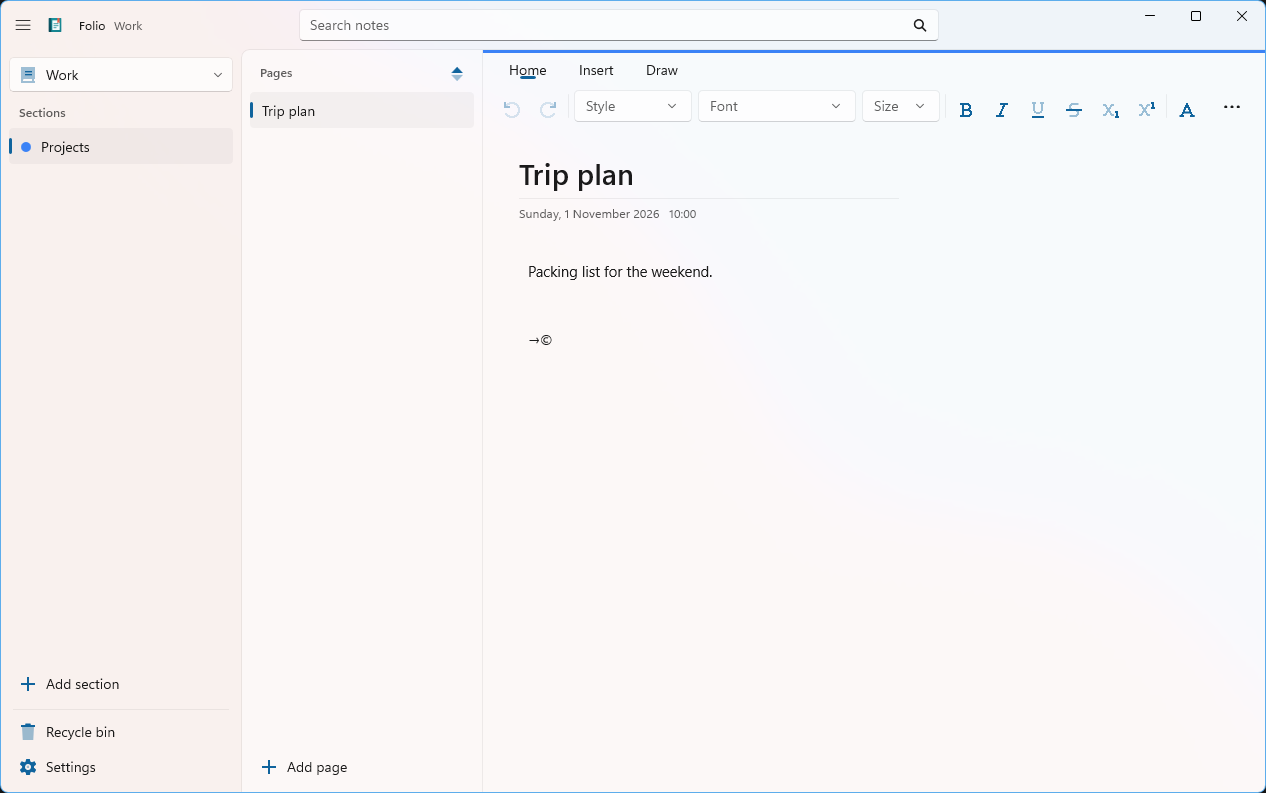
Folio Notes showing the Work notebook, its Projects section and a page titled Trip plan, with the Home, Insert and Draw tabs above the page.

Notebook › Section › Page

Three panes, and you always know where you are.

Pick a notebook, choose a section, open a page. Have a go below. You can type on the page too.

Sections
Pages
select text, then format

This is a sketch built for this page with made-up notes. The real app is in the screenshot above.

What's inside

The tools you reach for, where you expect them.

Search in the title bar
The search box sits at the top of the window, so finding a note never means leaving the page you are on.
Formatting as you write
Styles, fonts and sizes, with bold, italic, underline, strikethrough, subscript, superscript and text colour one click away.
A short ribbon
Home, Insert and Draw. Three tabs, with undo and redo always in the same corner.
Every page is dated
The date and time sit under each page title, so you can tell when a note was written at a glance.
A recycle bin
Deleted pages and sections go to the recycle bin at the bottom of the notebook, so a slip of the mouse is not the end of a note.
At home on Windows 11
Fluent controls, rounded corners and the soft translucent backdrop you know from the rest of Windows.

Give your notes a place to live.

Try the layout again Microsoft Store listing on the way
folio /ˈfəʊ.li.əʊ/ · noun

A single leaf of a book or manuscript, numbered on the front only. Also the page number itself.